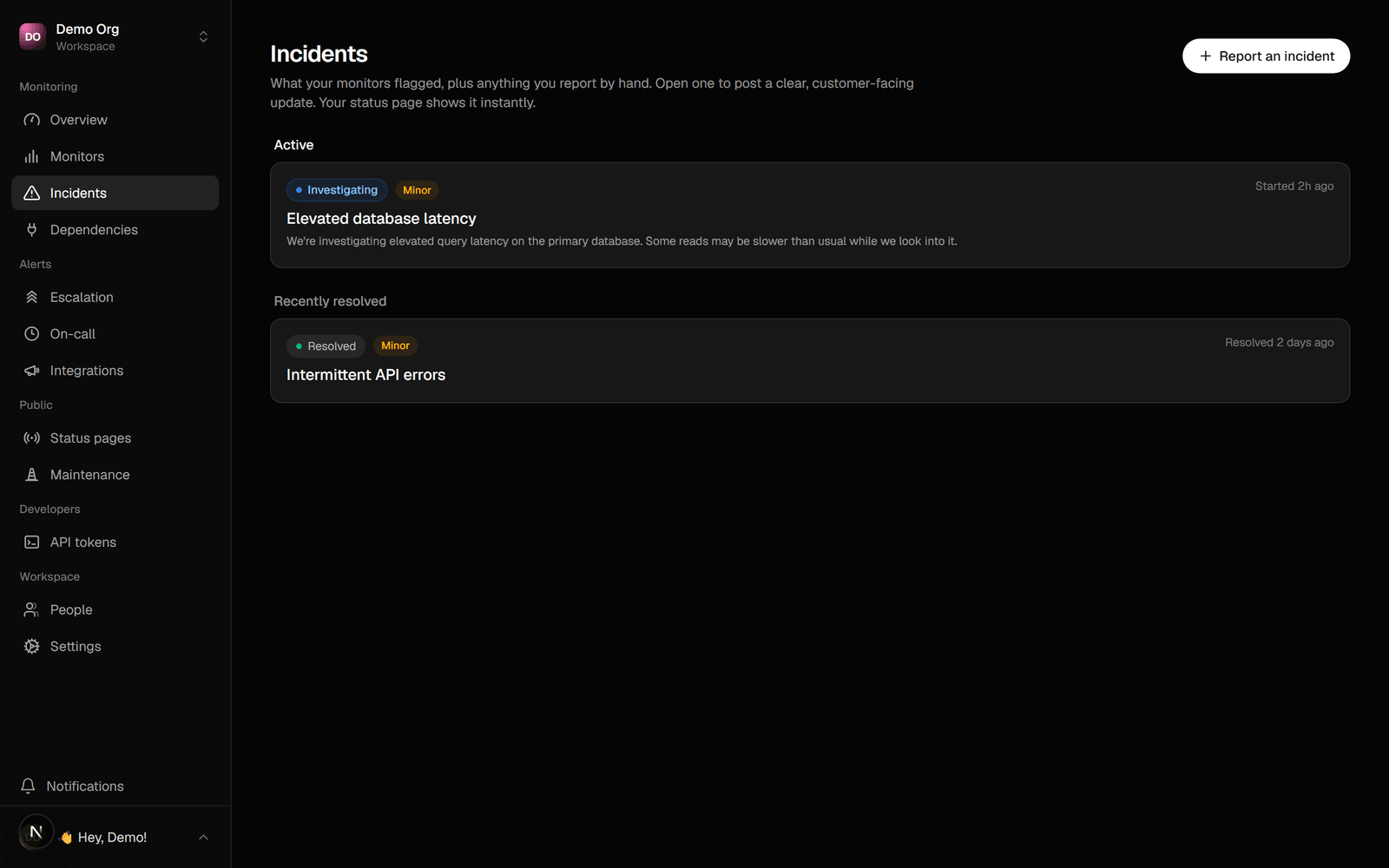
Open, update, and resolve incidents your customers can follow.
An incident records that something is wrong. A monitor opens one when it fails past its threshold, and you can open one by hand for an issue a check can’t see. Either way it shows on the status page and starts escalation.
Each update has a status: investigating,
identified, monitoring, or resolved. Subscribers and the page’s feed get every
update. Resolving the incident clears it from the page’s active list and returns
the component to operational.
The update composer has a Draft with AI option when an API key is configured. It writes an update from the incident’s context, stating what’s known and making no promises. Nothing posts until you review it, and the “AI-drafted” badge clears as soon as you change the text or the status.
After an incident resolves, write a blameless postmortem on it: what happened, the
impact, and what you’re changing. It stays on the incident and can show in the public history.
Each incident keeps a single timeline of its lifecycle: opens, updates, who
acknowledged, and the escalation steps that fired, in order.
{"docsConfig":{"theme":"mint","$schema":"https://mintlify.com/docs.json","name":"Sentivel","colors":{"primary":"#0a0a0a","light":"#fafafa","dark":"#0a0a0a"},"logo":{"light":"https://mintcdn.com/sentivel/v23hn2KMaKim_J85/logo/light.svg?fit=max\u0026auto=format\u0026n=v23hn2KMaKim_J85\u0026q=85\u0026s=d596fcea415e36d6f2d4ff8252abb1f7","dark":"https://mintcdn.com/sentivel/v23hn2KMaKim_J85/logo/dark.svg?fit=max\u0026auto=format\u0026n=v23hn2KMaKim_J85\u0026q=85\u0026s=0e37d4f65b18048afb8f1e4a91f3e5dd"},"favicon":"https://mintcdn.com/sentivel/v23hn2KMaKim_J85/favicon.svg?fit=max\u0026auto=format\u0026n=v23hn2KMaKim_J85\u0026q=85\u0026s=47a266fc98248bfb109dcb6e3088ceb2","appearance":{"default":"dark"},"background":{"color":{"light":"#ffffff","dark":"#000000"}},"navbar":{"links":[{"href":"mailto:support@sentivel.com","label":"Support"}],"primary":{"type":"button","label":"Dashboard","href":"https://www.sentivel.com/dashboard"}},"footer":{"socials":{"website":"https://www.sentivel.com","github":"https://github.com/Sentivel"}},"fonts":{"family":"Geist"},"contextual":{"options":["copy","view","chatgpt","claude","perplexity","mcp","cursor","vscode"],"display":"header"},"styling":{"latex":false},"navigation":{"pages":[]}},"deployment":{"deploymentMetadataValue":{"subdomain":"sentivel","hasAudioNarration":false,"actualSubdomain":"sentivel","customDomains":["docs.sentivel.com"],"gitSource":{"type":"github","owner":"sentivel","repo":"docs","deployBranch":"main","contentDirectory":"","isPrivate":false,"mountPath":"","label":""},"chroma":{"collectionId":"b5d9c4d1-b0ad-435f-ba0c-4afb62f7a0b7","liveDeploymentHistoryId":"6adbce7961eb4581b7123ead","schemaVersion":"v3","latestBuiltDeploymentHistoryId":"6adbce7961eb4581b7123ead"},"feedback":{"agentFeedback":true},"entitlements":{"AI_CHAT":{"status":"DISABLED"}},"buildId":"6adbce7961eb4581b7123ead","clientVersion":"0.0.4044","searchFilterCounts":[{"language":"default","tag":"API reference","count":42},{"language":"default","tag":"Documentation","count":14},{"language":"default","tag":"Status pages","count":11},{"language":"default","tag":"Monitors","count":9},{"language":"default","tag":"Incidents","count":6},{"language":"default","tag":"Maintenance","count":5},{"language":"default","tag":"Monitoring \u0026 status","count":4},{"language":"default","tag":"Components","count":4},{"language":"default","tag":"Developers","count":3},{"language":"default","tag":"Incidents \u0026 on-call","count":3}]},"assistantConfig":{"enableAskAiButton":false,"enableStarterQuestions":false,"enableContextualStarterQuestions":false,"enableAskAiSearchBar":true},"basePath":"","hasChatPermissions":false,"hasWebMcpPermissions":false,"toggles":[{"name":"kill-isr","enabled":true,"variant":{"name":"disabled","enabled":false,"feature_enabled":true},"impressionData":false},{"name":"agent-mintlify-slack","enabled":true,"variant":{"name":"disabled","enabled":false,"feature_enabled":true},"impressionData":false},{"name":"agent-integrations-settings","enabled":true,"variant":{"name":"disabled","enabled":false,"feature_enabled":true},"impressionData":false},{"name":"automations-pr-grouping","enabled":true,"variant":{"name":"disabled","enabled":false,"feature_enabled":true},"impressionData":false},{"name":"custom-prefix","enabled":true,"variant":{"name":"disabled","enabled":false,"feature_enabled":true},"impressionData":false},{"name":"analytics-v7","enabled":true,"variant":{"name":"disabled","enabled":false,"feature_enabled":true},"impressionData":false},{"name":"user-flows-analytics","enabled":true,"variant":{"name":"disabled","enabled":false,"feature_enabled":true},"impressionData":false},{"name":"no-publish-flow","enabled":true,"variant":{"name":"disabled","enabled":false,"feature_enabled":true},"impressionData":false},{"name":"workos-onboarding","enabled":true,"variant":{"name":"disabled","enabled":false,"feature_enabled":true},"impressionData":false},{"name":"llms-txt-v2","enabled":true,"variant":{"name":"disabled","enabled":false,"feature_enabled":true},"impressionData":false},{"name":"snapshot-serving-live","enabled":true,"variant":{"name":"disabled","enabled":false,"feature_enabled":true},"impressionData":false},{"name":"stripTemperatureMiddleware","enabled":true,"variant":{"name":"disabled","enabled":false,"feature_enabled":true},"impressionData":false},{"name":"support-platform-pylon-zendesk","enabled":true,"variant":{"name":"disabled","enabled":false,"feature_enabled":true},"impressionData":false},{"name":"snapshot-serving","enabled":true,"variant":{"name":"disabled","enabled":false,"feature_enabled":true},"impressionData":false},{"name":"instant-rollback","enabled":true,"variant":{"name":"disabled","enabled":false,"feature_enabled":true},"impressionData":false},{"name":"granular-notifications-server","enabled":true,"variant":{"name":"disabled","enabled":false,"feature_enabled":true},"impressionData":false},{"name":"granular-notifications","enabled":true,"variant":{"name":"disabled","enabled":false,"feature_enabled":true},"impressionData":false},{"name":"automations-fable","enabled":true,"variant":{"name":"disabled","enabled":false,"feature_enabled":true},"impressionData":false},{"name":"fixed-ai-action-pricing","enabled":true,"variant":{"name":"disabled","enabled":false,"feature_enabled":true},"impressionData":false},{"name":"automation-resolve-merge-conflict","enabled":true,"variant":{"name":"disabled","enabled":false,"feature_enabled":true},"impressionData":false},{"name":"scoped-publishing","enabled":true,"variant":{"name":"disabled","enabled":false,"feature_enabled":true},"impressionData":false},{"name":"mintql","enabled":true,"variant":{"name":"disabled","enabled":false,"feature_enabled":true},"impressionData":false},{"name":"page-level-analytics","enabled":true,"variant":{"name":"disabled","enabled":false,"feature_enabled":true},"impressionData":false},{"name":"editor-version-history-v2","enabled":true,"variant":{"name":"disabled","enabled":false,"feature_enabled":true},"impressionData":false},{"name":"billing-page-v2","enabled":true,"variant":{"name":"disabled","enabled":false,"feature_enabled":true},"impressionData":false},{"name":"full-page-search","enabled":true,"variant":{"name":"disabled","enabled":false,"feature_enabled":true},"impressionData":false},{"name":"workspace-projects","enabled":true,"variant":{"name":"disabled","enabled":false,"feature_enabled":true},"impressionData":false},{"name":"assistant-v5","enabled":true,"variant":{"name":"disabled","enabled":false,"feature_enabled":true},"impressionData":false},{"name":"byok-sep-25","enabled":true,"variant":{"name":"disabled","enabled":false,"feature_enabled":true},"impressionData":false},{"name":"fork-pr-previews","enabled":true,"variant":{"name":"disabled","enabled":false,"feature_enabled":true},"impressionData":false},{"name":"revalidation-jwt","enabled":true,"variant":{"name":"disabled","enabled":false,"feature_enabled":true},"impressionData":false},{"name":"vite-origin","enabled":true,"variant":{"name":"disabled","enabled":false,"feature_enabled":true},"impressionData":false},{"name":"billing-updated-9-15","enabled":true,"variant":{"name":"disabled","enabled":false,"feature_enabled":true},"impressionData":false},{"name":"workos-sso-scim","enabled":true,"variant":{"name":"disabled","enabled":false,"feature_enabled":true},"impressionData":false},{"name":"hobby-abuse-scan","enabled":true,"variant":{"name":"disabled","enabled":false,"feature_enabled":true},"impressionData":false},{"name":"dashboard-inbox","enabled":true,"variant":{"name":"disabled","enabled":false,"feature_enabled":true},"impressionData":false},{"name":"workos-signup","enabled":true,"variant":{"name":"disabled","enabled":false,"feature_enabled":true},"impressionData":false},{"name":"turbopuffer-dual-write","enabled":true,"variant":{"name":"disabled","enabled":false,"feature_enabled":true},"impressionData":false},{"name":"workos-enabled","enabled":true,"variant":{"name":"disabled","enabled":false,"feature_enabled":true},"impressionData":false},{"name":"approve-review-flow","enabled":true,"variant":{"name":"disabled","enabled":false,"feature_enabled":true},"impressionData":false},{"name":"sso-setup-deadline-banner","enabled":true,"variant":{"name":"disabled","enabled":false,"feature_enabled":true},"impressionData":false}],"googleFontsInlined":true},"customCss":[{"filePath":"style.css","content":".nav-tabs-item[data-active=true],.nav-tabs-item[data-active=true] *,a[aria-current=location],a[aria-current=location] *,a[aria-current=page],a[aria-current=page] *{text-shadow:none!important;font-weight:450!important}h1{font-weight:520!important;letter-spacing:-.015em}h2,h3,h4{font-weight:500!important}"}],"page":{"pagePath":"guides/incidents","slug":"/guides/incidents","pageMetadata":{"title":"Incidents","description":"Open, update, and resolve incidents your customers can follow.","icon":"triangle-exclamation","href":"/guides/incidents"},"description":{"compiledSource":"\"use strict\";\nconst {jsx: _jsx} = arguments[0];\nconst {useMDXComponents: _provideComponents} = arguments[0];\nfunction _createMdxContent(props) {\n const _components = {\n p: \"p\",\n ..._provideComponents(),\n ...props.components\n };\n return _jsx(_components.p, {\n children: \"Open, update, and resolve incidents your customers can follow.\"\n });\n}\nfunction MDXContent(props = {}) {\n const {wrapper: MDXLayout} = {\n ..._provideComponents(),\n ...props.components\n };\n return MDXLayout ? _jsx(MDXLayout, {\n ...props,\n children: _jsx(_createMdxContent, {\n ...props\n })\n }) : _createMdxContent(props);\n}\nreturn {\n default: MDXContent\n};\n","frontmatter":{},"scope":{}},"pageType":"default","mdx":{"mdxSource":{"compiledSource":"\"use strict\";const{Fragment:_Fragment,jsx:_jsx,jsxs:_jsxs}=arguments[0];const{useMDXComponents:_provideComponents}=arguments[0];function _createMdxContent(props){const _components={a:`a`,li:`li`,ol:`ol`,p:`p`,strong:`strong`,..._provideComponents(),...props.components},{Frame,Heading,OptimizedImage}=_components;if(!Frame)_missingMdxReference(`Frame`,true);if(!Heading)_missingMdxReference(`Heading`,true);if(!OptimizedImage)_missingMdxReference(`OptimizedImage`,true);return _jsxs(_Fragment,{children:[_jsx(Frame,{children:_jsx(OptimizedImage,{src:`https://mintcdn.com/sentivel/LZVYrDg_7S2eGj5p/images/incidents.png?fit=max\u0026auto=format\u0026n=LZVYrDg_7S2eGj5p\u0026q=85\u0026s=882d9f632ca060090201ba6ec7b0715c`,alt:`The incidents view in the dashboard`,\"data-og-width\":`1600`,width:`1600`,\"data-og-height\":`1000`,height:`1000`,\"data-path\":`images/incidents.png`,\"data-optimize\":`true`,\"data-opv\":`3`,srcset:`https://mintcdn.com/sentivel/LZVYrDg_7S2eGj5p/images/incidents.png?w=280\u0026fit=max\u0026auto=format\u0026n=LZVYrDg_7S2eGj5p\u0026q=85\u0026s=d5e59e8479c73a37791bed527429be4a 280w, https://mintcdn.com/sentivel/LZVYrDg_7S2eGj5p/images/incidents.png?w=560\u0026fit=max\u0026auto=format\u0026n=LZVYrDg_7S2eGj5p\u0026q=85\u0026s=791a927ce06176c35a315711e032430e 560w, https://mintcdn.com/sentivel/LZVYrDg_7S2eGj5p/images/incidents.png?w=840\u0026fit=max\u0026auto=format\u0026n=LZVYrDg_7S2eGj5p\u0026q=85\u0026s=4fd964a02819bd24976490482a13314f 840w, https://mintcdn.com/sentivel/LZVYrDg_7S2eGj5p/images/incidents.png?w=1100\u0026fit=max\u0026auto=format\u0026n=LZVYrDg_7S2eGj5p\u0026q=85\u0026s=380749472fe5eb4376da4d562e21e748 1100w, https://mintcdn.com/sentivel/LZVYrDg_7S2eGj5p/images/incidents.png?w=1650\u0026fit=max\u0026auto=format\u0026n=LZVYrDg_7S2eGj5p\u0026q=85\u0026s=b57178fe562c1cc4b65351fc4bf9e4ea 1650w, https://mintcdn.com/sentivel/LZVYrDg_7S2eGj5p/images/incidents.png?w=2500\u0026fit=max\u0026auto=format\u0026n=LZVYrDg_7S2eGj5p\u0026q=85\u0026s=5b0dd5cdac2508d241d6382763d567b3 2500w`})}),`\n`,_jsx(_components.p,{children:`An incident records that something is wrong. A monitor opens one when it fails past its threshold, and you can open one by hand for an issue a check can’t see. Either way it shows on the status page and starts escalation.`}),`\n`,_jsx(Heading,{level:`2`,id:`open-one-by-hand`,children:`Open one by hand`}),`\n`,_jsxs(_components.ol,{children:[`\n`,_jsxs(_components.li,{children:[`Go to `,_jsx(_components.strong,{children:`Incidents → New`}),`.`]}),`\n`,_jsx(_components.li,{children:`Set a title, the affected component, and the impact.`}),`\n`,_jsx(_components.li,{children:`Post an opening update.`}),`\n`]}),`\n`,_jsx(_components.p,{children:`The component reflects the incident’s impact on the status page, and the page\nstops claiming everything is operational.`}),`\n`,_jsx(Heading,{level:`2`,id:`post-updates`,children:`Post updates`}),`\n`,_jsx(_components.p,{children:`Each update has a status: investigating,\nidentified, monitoring, or resolved. Subscribers and the page’s feed get every\nupdate. Resolving the incident clears it from the page’s active list and returns\nthe component to operational.`}),`\n`,_jsx(Heading,{level:`2`,id:`draft-with-ai`,children:`Draft with AI`}),`\n`,_jsxs(_components.p,{children:[`The update composer has a `,_jsx(_components.strong,{children:`Draft with AI`}),` option when an API key is configured. It writes an update from the incident’s context, stating what’s known and making no promises. Nothing posts until you review it, and the “AI-drafted” badge clears as soon as you change the text or the status.`]}),`\n`,_jsx(Heading,{level:`2`,id:`acknowledge`,children:`Acknowledge`}),`\n`,_jsxs(_components.p,{children:[`Acknowledging an open incident stops its escalation ladder. See\n`,_jsx(_components.a,{href:`/guides/escalation`,children:`Escalation \u0026 on-call`}),`.`]}),`\n`,_jsx(Heading,{level:`2`,id:`postmortems`,children:`Postmortems`}),`\n`,_jsx(_components.p,{children:`After an incident resolves, write a blameless postmortem on it: what happened, the\nimpact, and what you’re changing. It stays on the incident and can show in the public history.`}),`\n`,_jsx(Heading,{level:`2`,id:`timeline`,children:`Timeline`}),`\n`,_jsx(_components.p,{children:`Each incident keeps a single timeline of its lifecycle: opens, updates, who\nacknowledged, and the escalation steps that fired, in order.`})]})}function MDXContent(props={}){const{wrapper:MDXLayout}={..._provideComponents(),...props.components};return MDXLayout?_jsx(MDXLayout,{...props,children:_jsx(_createMdxContent,{...props})}):_createMdxContent(props)}return{default:MDXContent};function _missingMdxReference(id,component){throw new Error(`Expected `+(component?`component`:`object`)+\" `\"+id+\"` to be defined: you likely forgot to import, pass, or provide it.\")}","frontmatter":{},"scope":{"config":{},"pageMetadata":{"title":"Incidents","description":"Open, update, and resolve incidents your customers can follow.","icon":"triangle-exclamation","href":"/guides/incidents"}}},"mdxSourceWithNoJs":null},"mdxExtracts":{"tableOfContents":[{"title":"Open one by hand","slug":"open-one-by-hand","depth":2,"children":[]},{"title":"Post updates","slug":"post-updates","depth":2,"children":[]},{"title":"Draft with AI","slug":"draft-with-ai","depth":2,"children":[]},{"title":"Acknowledge","slug":"acknowledge","depth":2,"children":[]},{"title":"Postmortems","slug":"postmortems","depth":2,"children":[]},{"title":"Timeline","slug":"timeline","depth":2,"children":[]}],"codeExamples":{}},"jsLinks":[],"subdomain":"sentivel","siteName":"Sentivel","title":"Incidents - Sentivel","navMaps":{"firstHrefInVersion":{},"firstHrefInLanguage":{}},"lastModified":"2026-10-11T12:42:08.770Z","originalFileLocation":"guides/incidents.mdx"},"headHtml":"\u003cscript data-mint-head>(function(){var d=document.documentElement,p=null;if(!p){try{p=localStorage.getItem(\"isDarkMode\")}catch(e){}if(p==='true')p='dark';else if(p==='false')p='light';if(p!=='light'\u0026\u0026p!=='dark'\u0026\u0026p!=='system')p=\"dark\"}var r=p==='system'?(matchMedia(\"(prefers-color-scheme: dark)\").matches?'dark':'light'):p;d.classList.remove(r==='dark'?'light':'dark');d.classList.add(r);d.setAttribute(\"data-theme-preference\",p)})();\u003c/script>\u003cmeta data-mint-head name=\"description\" content=\"Open, update, and resolve incidents your customers can follow.\">\u003cmeta data-mint-head name=\"application-name\" content=\"Sentivel\">\u003cmeta data-mint-head name=\"generator\" content=\"Mintlify\">\u003clink data-mint-head rel=\"icon\" type=\"image/png\" sizes=\"192x192\" href=\"/mintlify-assets/_mintlify/favicons/sentivel/wz6-x0HILtG4nmya/_generated/favicon/android-chrome-192x192.png\" media=\"(prefers-color-scheme: light)\">\u003clink data-mint-head rel=\"apple-touch-icon\" type=\"image/png\" sizes=\"180x180\" href=\"/mintlify-assets/_mintlify/favicons/sentivel/wz6-x0HILtG4nmya/_generated/favicon/apple-touch-icon.png\">\u003clink data-mint-head rel=\"icon\" type=\"image/png\" sizes=\"16x16\" href=\"/mintlify-assets/_mintlify/favicons/sentivel/wz6-x0HILtG4nmya/_generated/favicon/favicon-16x16.png\" media=\"(prefers-color-scheme: light)\">\u003clink data-mint-head rel=\"icon\" type=\"image/png\" sizes=\"32x32\" href=\"/mintlify-assets/_mintlify/favicons/sentivel/wz6-x0HILtG4nmya/_generated/favicon/favicon-32x32.png\" media=\"(prefers-color-scheme: light)\">\u003clink data-mint-head rel=\"shortcut icon\" type=\"image/x-icon\" href=\"/mintlify-assets/_mintlify/favicons/sentivel/wz6-x0HILtG4nmya/_generated/favicon/favicon.ico\" media=\"(prefers-color-scheme: light)\">\u003clink data-mint-head rel=\"icon\" type=\"image/png\" sizes=\"192x192\" href=\"/mintlify-assets/_mintlify/favicons/sentivel/wz6-x0HILtG4nmya/_generated/favicon-dark/android-chrome-192x192.png\" media=\"(prefers-color-scheme: dark)\">\u003clink data-mint-head rel=\"icon\" type=\"image/png\" sizes=\"16x16\" href=\"/mintlify-assets/_mintlify/favicons/sentivel/wz6-x0HILtG4nmya/_generated/favicon-dark/favicon-16x16.png\" media=\"(prefers-color-scheme: dark)\">\u003clink data-mint-head rel=\"icon\" type=\"image/png\" sizes=\"32x32\" href=\"/mintlify-assets/_mintlify/favicons/sentivel/wz6-x0HILtG4nmya/_generated/favicon-dark/favicon-32x32.png\" media=\"(prefers-color-scheme: dark)\">\u003clink data-mint-head rel=\"shortcut icon\" type=\"image/x-icon\" href=\"/mintlify-assets/_mintlify/favicons/sentivel/wz6-x0HILtG4nmya/_generated/favicon-dark/favicon.ico\" media=\"(prefers-color-scheme: dark)\">\u003cmeta data-mint-head property=\"og:title\" content=\"Incidents - Sentivel\">\u003cmeta data-mint-head property=\"og:description\" content=\"Open, update, and resolve incidents your customers can follow.\">\u003cmeta data-mint-head property=\"og:site_name\" content=\"Sentivel\">\u003cmeta data-mint-head property=\"og:url\" content=\"https://docs.sentivel.com/guides/incidents\">\u003cmeta data-mint-head property=\"og:type\" content=\"website\">\u003cmeta data-mint-head property=\"og:image\" content=\"https://sentivel.mintlify.app/_mintlify/api/og/v2?division=Incidents+%26+on-call\u0026amp;title=Incidents\u0026amp;description=Open%2C+update%2C+and+resolve+incidents+your+customers+can+follow.\u0026amp;theme=04979a22682c09f042fefbde\u0026amp;signature=6d0a5fb4f237d135dad032a28adf2ac34b893c8806901c0a02cd5ed210b3d8d3\">\u003cmeta data-mint-head property=\"og:image:width\" content=\"1200\">\u003cmeta data-mint-head property=\"og:image:height\" content=\"630\">\u003cmeta data-mint-head name=\"twitter:card\" content=\"summary_large_image\">\u003cmeta data-mint-head name=\"twitter:title\" content=\"Incidents - Sentivel\">\u003cmeta data-mint-head name=\"twitter:description\" content=\"Open, update, and resolve incidents your customers can follow.\">\u003cmeta data-mint-head name=\"twitter:image\" content=\"https://sentivel.mintlify.app/_mintlify/api/og/v2?division=Incidents+%26+on-call\u0026amp;title=Incidents\u0026amp;description=Open%2C+update%2C+and+resolve+incidents+your+customers+can+follow.\u0026amp;theme=04979a22682c09f042fefbde\u0026amp;signature=6d0a5fb4f237d135dad032a28adf2ac34b893c8806901c0a02cd5ed210b3d8d3\">\u003cmeta data-mint-head name=\"twitter:image:width\" content=\"1200\">\u003cmeta data-mint-head name=\"twitter:image:height\" content=\"630\">\u003cmeta data-mint-head name=\"msapplication-config\" content=\"/mintlify-assets/_mintlify/favicons/sentivel/wz6-x0HILtG4nmya/_generated/favicon/browserconfig.xml\">\u003cmeta data-mint-head name=\"apple-mobile-web-app-title\" content=\"Sentivel\">\u003cmeta data-mint-head name=\"msapplication-TileColor\" content=\"#0a0a0a\">\u003clink data-mint-head rel=\"canonical\" href=\"https://docs.sentivel.com/guides/incidents\">\u003clink data-mint-head rel=\"alternate\" type=\"application/xml\" href=\"/sitemap.xml\">\u003clink data-mint-head rel=\"alternate\" type=\"text/markdown\" href=\"/guides/incidents.md\">\u003cscript data-mint-head type=\"application/ld+json\">{\"@context\":\"https://schema.org\",\"@graph\":[{\"@type\":\"Organization\",\"@id\":\"https://docs.sentivel.com/#organization\",\"name\":\"Sentivel\",\"url\":\"https://docs.sentivel.com\",\"logo\":{\"@type\":\"ImageObject\",\"url\":\"https://mintcdn.com/sentivel/v23hn2KMaKim_J85/logo/light.svg?fit=max\u0026auto=format\u0026n=v23hn2KMaKim_J85\u0026q=85\u0026s=d596fcea415e36d6f2d4ff8252abb1f7\"}},{\"@type\":\"WebSite\",\"@id\":\"https://docs.sentivel.com#website\",\"name\":\"Sentivel\",\"url\":\"https://docs.sentivel.com\",\"publisher\":{\"@id\":\"https://docs.sentivel.com/#organization\"}},{\"@type\":\"WebPage\",\"@id\":\"https://docs.sentivel.com/guides/incidents#webpage\",\"url\":\"https://docs.sentivel.com/guides/incidents\",\"name\":\"Incidents\",\"description\":\"Open, update, and resolve incidents your customers can follow.\",\"dateModified\":\"2026-10-11T12:42:08.770Z\",\"isPartOf\":{\"@id\":\"https://docs.sentivel.com#website\"},\"breadcrumb\":{\"@id\":\"https://docs.sentivel.com/guides/incidents#breadcrumb\"}},{\"@type\":\"BreadcrumbList\",\"@id\":\"https://docs.sentivel.com/guides/incidents#breadcrumb\",\"itemListElement\":[{\"@type\":\"ListItem\",\"position\":1,\"name\":\"Sentivel\",\"item\":\"https://docs.sentivel.com\"},{\"@type\":\"ListItem\",\"position\":2,\"name\":\"Incidents\",\"item\":\"https://docs.sentivel.com/guides/incidents\"}]},{\"@type\":[\"Article\",\"TechArticle\"],\"@id\":\"https://docs.sentivel.com/guides/incidents#article\",\"headline\":\"Incidents\",\"name\":\"Incidents\",\"description\":\"Open, update, and resolve incidents your customers can follow.\",\"url\":\"https://docs.sentivel.com/guides/incidents\",\"mainEntityOfPage\":{\"@id\":\"https://docs.sentivel.com/guides/incidents#webpage\"},\"dateModified\":\"2026-10-11T12:42:08.770Z\",\"publisher\":{\"@id\":\"https://docs.sentivel.com/#organization\"},\"isPartOf\":{\"@id\":\"https://docs.sentivel.com#website\"}}]}\u003c/script>\u003cscript data-mint-head type=\"application/ld+json\">{\"@context\":\"https://schema.org\",\"@type\":\"WebSite\",\"name\":\"Sentivel\",\"creator\":{\"@type\":\"Organization\",\"name\":\"Mintlify\",\"url\":\"https://mintlify.com\"}}\u003c/script>","siteName":"Sentivel","nav":{"global":null,"tabs":[{"tab":"Documentation","icon":"book-open","groups":[{"group":"Get started","pages":[{"title":"Introduction","icon":"book-open","href":""},{"title":"Quickstart","icon":"rocket","href":"/quickstart"},{"title":"Set up with AI","icon":"robot","href":"/set-up-with-ai"}]},{"group":"Monitoring \u0026 status","pages":[{"title":"Monitors","icon":"heart-pulse","href":"/guides/monitors"},{"title":"Status pages","icon":"signal","href":"/guides/status-pages"},{"title":"Dependencies \u0026 cascade","icon":"diagram-project","href":"/guides/dependencies"},{"title":"Migrate from Statuspage or Instatus","description":"Import your components, incident history, and subscribers.","icon":"arrow-right-arrow-left","href":"/guides/migrate"}]},{"group":"Incidents \u0026 on-call","pages":[{"title":"Incidents","icon":"triangle-exclamation","href":"/guides/incidents"},{"title":"Escalation \u0026 on-call","description":"Page the right people until someone acknowledges.","icon":"bell","href":"/guides/escalation"},{"title":"Integrations","icon":"plug","href":"/guides/integrations"}]},{"group":"Your workspace","pages":[{"title":"Account, teams \u0026 roles","icon":"users","href":"/guides/account"}]},{"group":"Developers","pages":[{"title":"Authentication","icon":"key","href":"/authentication"},{"title":"API overview","icon":"code","href":"/api-overview"},{"title":"Webhook subscriptions","icon":"tower-broadcast","href":"/guides/webhook-subscriptions"}]}]},{"tab":"API reference","icon":"code","pages":[{"title":"API reference","href":"/api-reference/identity/identify-the-calling-token"}]}]},"basePath":"","title":"Incidents - Sentivel","buildId":"dpl_DeHjVRGfFnhYQwHnfC2pjeXXv8h9","deploymentId":"dpl_DeHjVRGfFnhYQwHnfC2pjeXXv8h9","dynamics":["07c022d89b","a74be98ba7"],"chunks":["Frame-DXXFP6nH.js","DynamicMarkdown-B54_zNBF.js","zoom-image-lightbox-BG6oD64b.js","lightbox-handle-r17bVUz3.js"]}