> ## Documentation Index
> Fetch the complete documentation index at: https://docs.sentivel.com/llms.txt
> Use this file to discover all available pages before exploring further.
# Escalation & on-call
> Get the right person, on the right channel, until someone responds.
 When a monitor opens an incident, an escalation policy decides who hears about it
and when. A policy is a ladder of steps: page the first target now, widen after a
few minutes if no one acknowledges, repeat until someone does.
## Build a policy
1. Go to **Escalation → New policy**.
2. Add steps. Each step has a delay (measured from the previous step) and one or
more targets.
3. A target is a channel (Slack, Discord, a webhook), a person, or an on-call
schedule.
Set how the policy repeats while an incident stays unacknowledged. Point a
monitor at the policy, or set one as the workspace default.
## Add a runbook
Give a policy a runbook: a checklist or playbook for whoever it pages. Write it in
the policy editor under **Runbook**. Markdown works.
The runbook shows on the incident and on the acknowledge link, so a responder sees
it the moment they're paged. Use it for the first things to check, who to call, and
where the dashboards live. Leave it blank if you don't need one.
## Screen noisy alerts
Not every alert should wake someone. Mark a policy **silent** to record its
incidents on your dashboard without paging anyone, then triage them by hand.
1. In the policy editor, turn on **Silent**.
2. Point a noisy monitor at the silent policy (or set it as the workspace default).
A silent policy has no steps and sends nothing: no channels, no people, no on-call.
The incident still shows on your dashboard and status page.
When one turns out to be real, open the incident and use **Escalate to policy** to
put it on a paging policy. It pages from the first step right then, and keeps
escalating until someone acknowledges.
## Compose policies
A step can page **another policy** instead of copying its responders. Pick "Page
another policy" on a step and everyone in the chosen policy is paged at that step.
Use it for a shared group: keep one "Payments on-call" policy and reference it from
every service that depends on payments. Update the group once, everywhere follows.
References resolve recursively and are cycle-safe: a policy can't page itself,
directly or through a chain.
## Routing a step
A step can carry conditions, so one policy handles different cases:
* **Severity.** Fire only at or above a minimum impact.
* **Metadata.** Fire only when the incident's metadata matches (for example
`env: production`).
* **Time of day.** Fire only on certain days and hours, in a timezone you choose.
Give two steps complementary windows to notify a channel in business hours and
page on-call out of hours.
## Acknowledge
Acknowledging an incident stops the escalation. Acknowledge from the dashboard, or
from the signed link in the alert (it opens a page; a button does the ack, so a
link preview can't acknowledge for you). A Member can't acknowledge; that takes
Responder access or higher.
## How people are paged
Each person sets their own contact details in their account. By default an
escalation reaches them on every method they have set up. They can define a
personal ladder instead ("email now, text after 5 minutes"). SMS and calls go
only to a phone they've verified; email always works, so a page is never dropped
for a missing verification.
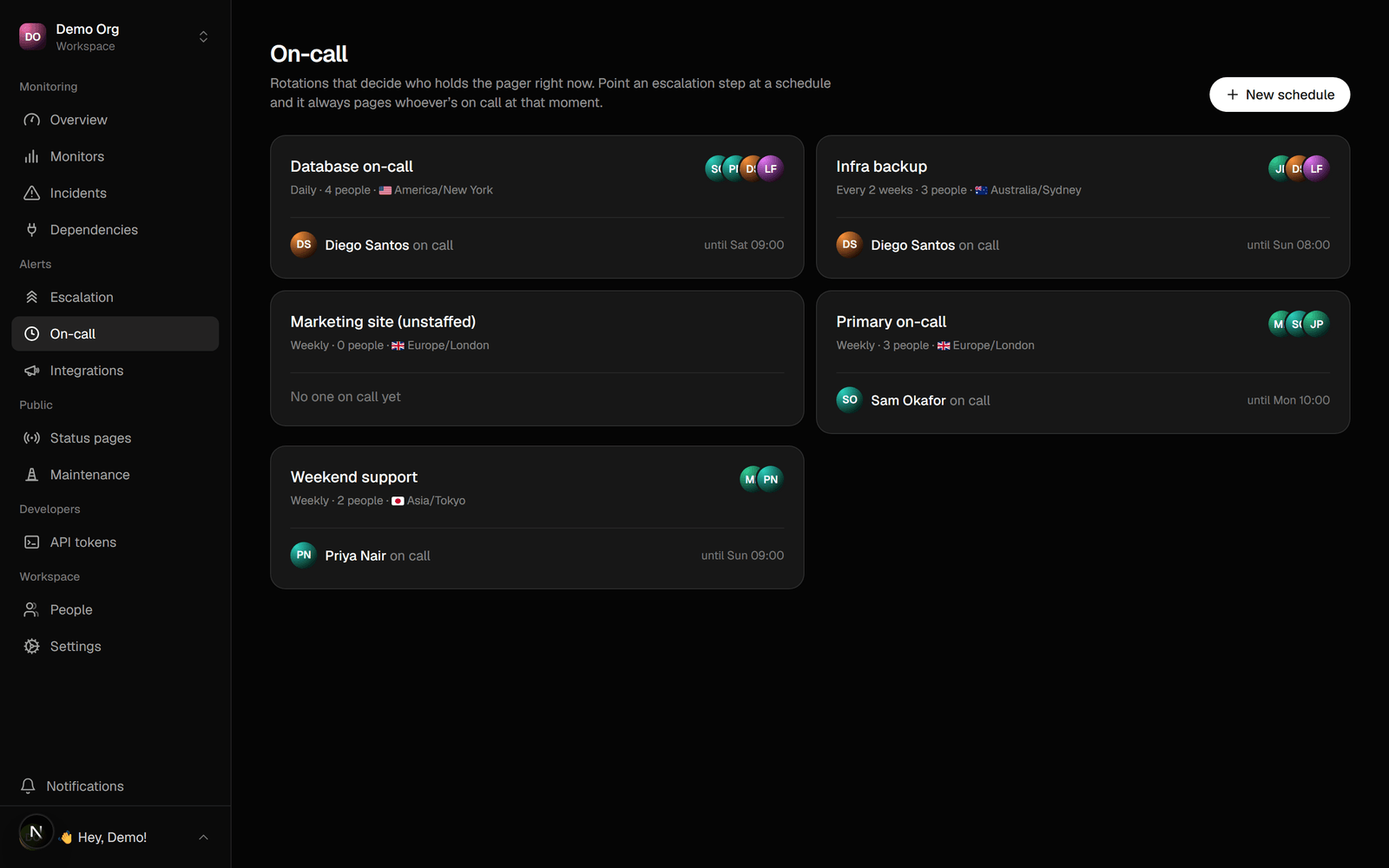
## On-call schedules
A schedule rotates who's on call. Configure the rotation cadence and the
responders; cover a gap with a one-off override. A step that targets a schedule
pages whoever is on call at that moment.
* **Coverage-gap fallback.** If a schedule has no one on call, the step pages the
workspace owners and admins instead of paging no one.
* **Handoff reminders.** Opt in to a heads-up email before your shift starts, so
a handoff isn't a surprise. Off by default.
* **Holiday.** Pause your own paging while you're away; your team is still paged.
## Calendars
Subscribe to a schedule from Google, Apple, or Outlook through a signed iCal feed,
or connect Google Calendar for a two-way mirror.
When a monitor opens an incident, an escalation policy decides who hears about it
and when. A policy is a ladder of steps: page the first target now, widen after a
few minutes if no one acknowledges, repeat until someone does.
## Build a policy
1. Go to **Escalation → New policy**.
2. Add steps. Each step has a delay (measured from the previous step) and one or
more targets.
3. A target is a channel (Slack, Discord, a webhook), a person, or an on-call
schedule.
Set how the policy repeats while an incident stays unacknowledged. Point a
monitor at the policy, or set one as the workspace default.
## Add a runbook
Give a policy a runbook: a checklist or playbook for whoever it pages. Write it in
the policy editor under **Runbook**. Markdown works.
The runbook shows on the incident and on the acknowledge link, so a responder sees
it the moment they're paged. Use it for the first things to check, who to call, and
where the dashboards live. Leave it blank if you don't need one.
## Screen noisy alerts
Not every alert should wake someone. Mark a policy **silent** to record its
incidents on your dashboard without paging anyone, then triage them by hand.
1. In the policy editor, turn on **Silent**.
2. Point a noisy monitor at the silent policy (or set it as the workspace default).
A silent policy has no steps and sends nothing: no channels, no people, no on-call.
The incident still shows on your dashboard and status page.
When one turns out to be real, open the incident and use **Escalate to policy** to
put it on a paging policy. It pages from the first step right then, and keeps
escalating until someone acknowledges.
## Compose policies
A step can page **another policy** instead of copying its responders. Pick "Page
another policy" on a step and everyone in the chosen policy is paged at that step.
Use it for a shared group: keep one "Payments on-call" policy and reference it from
every service that depends on payments. Update the group once, everywhere follows.
References resolve recursively and are cycle-safe: a policy can't page itself,
directly or through a chain.
## Routing a step
A step can carry conditions, so one policy handles different cases:
* **Severity.** Fire only at or above a minimum impact.
* **Metadata.** Fire only when the incident's metadata matches (for example
`env: production`).
* **Time of day.** Fire only on certain days and hours, in a timezone you choose.
Give two steps complementary windows to notify a channel in business hours and
page on-call out of hours.
## Acknowledge
Acknowledging an incident stops the escalation. Acknowledge from the dashboard, or
from the signed link in the alert (it opens a page; a button does the ack, so a
link preview can't acknowledge for you). A Member can't acknowledge; that takes
Responder access or higher.
## How people are paged
Each person sets their own contact details in their account. By default an
escalation reaches them on every method they have set up. They can define a
personal ladder instead ("email now, text after 5 minutes"). SMS and calls go
only to a phone they've verified; email always works, so a page is never dropped
for a missing verification.
## On-call schedules
A schedule rotates who's on call. Configure the rotation cadence and the
responders; cover a gap with a one-off override. A step that targets a schedule
pages whoever is on call at that moment.
* **Coverage-gap fallback.** If a schedule has no one on call, the step pages the
workspace owners and admins instead of paging no one.
* **Handoff reminders.** Opt in to a heads-up email before your shift starts, so
a handoff isn't a surprise. Off by default.
* **Holiday.** Pause your own paging while you're away; your team is still paged.
## Calendars
Subscribe to a schedule from Google, Apple, or Outlook through a signed iCal feed,
or connect Google Calendar for a two-way mirror.